How to Keep Event Photos Private: 7 Controls That Matter
Password, downloads, uploads, face search and deletion: what each event photo privacy control stops, what it doesn't, and which to use for your event.

To keep event photos private, control three things: who can open the gallery, who can add to it, and who can keep copies. In practice that means a password on the event, a deliberate choice about downloads, and someone ready to delete anything unwanted the moment it appears. Everything else is fine-tuning. This guide covers the seven controls that matter, what each one actually stops, what it doesn't, and which combination to use for a wedding, a children's party or a company event.
We build EventPixel, so the settings named below are ours, checked against the product in October 2026. The questions apply to any event photo app; there's a checklist for comparing them near the end. If you're still choosing an app, our ranking of the best private photo sharing apps compares the privacy models side by side.
What "private" means for an event gallery
A family album has a fixed membership: you invite twelve people and nobody else gets in. An event gallery can't work that way. A wedding has 150 guests, most of whom you'll never get to install an app or make an account, and the whole point is that a QR code on a table lets anyone at the party contribute in ten seconds. So event privacy isn't about membership. It's three separate gates:
- Who can open it. Anyone with the link, or only people who know the password.
- Who can add to it. Anyone, signed-in guests only, or nobody once the event is over.
- Who can keep copies. Everyone, signed-in guests only, or the hosts alone.
Most of the privacy worries hosts bring us are really about the third gate, not the first.
The 7 privacy controls, and what each one stops
| Control | What it stops | What it doesn't stop | Default |
|---|---|---|---|
| 1. Event password | Anyone who has the link but not the password opening the website, upload page, gallery or live wall | A guest who knows it passing both on | Off |
| 2. Downloads off | Guests saving photos from the gallery: the download button disappears from every photo | Screenshots | Downloads on |
| 3. Require login to download | Anonymous downloads: every copy has a signed-in name on it | A signed-in guest sharing what they saved | On |
| 4. Anonymous uploads off | Uploads from people who won't put a name to them | Fewer photos: some guests won't sign in | Anonymous uploads on |
| 5. Photo uploads off | Any new upload. Use it when the event is over | Viewing: the gallery stays open | Uploads on |
| 6. Delete any photo | An unwanted photo staying up: it leaves the gallery, the live wall and face search at once | Someone seeing it in the seconds before you delete it | Always available to hosts and co-organisers |
| 7. Face search off | Guests finding photos of themselves with a selfie | Scrolling: everyone can still browse the gallery | On, where the plan includes it |
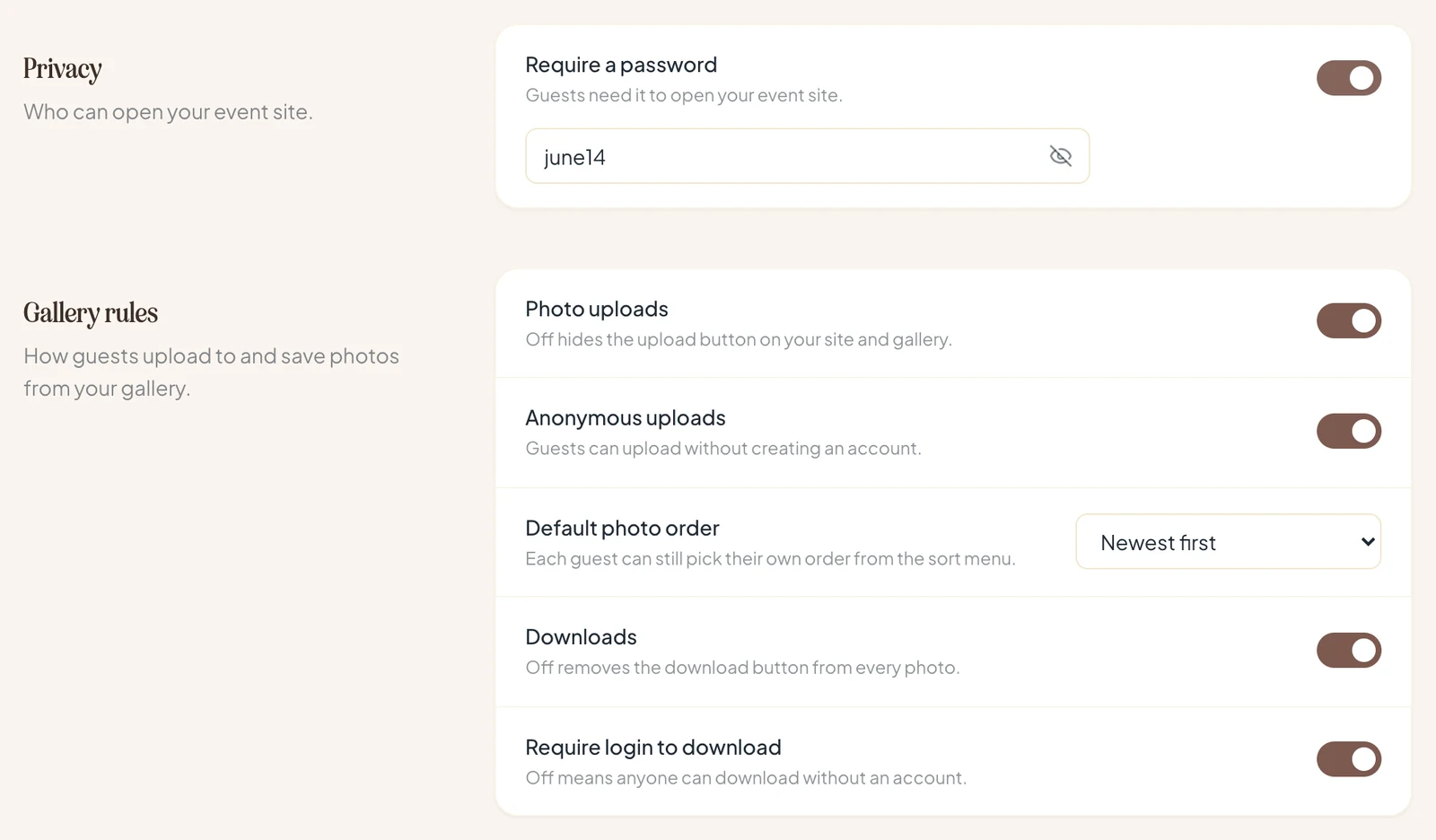
On EventPixel, controls 1 to 5 sit on one screen: open the event, then Settings, where the password is under Privacy and the rest under Gallery rules (above). Deleting happens in Manage Event Gallery, and the face search switch is under Manage Features.
How to set up a private event gallery, step by step
- Turn on the password before you print anything. Choose something short a guest can type at a dinner table, such as
june14, not a random string. Print it under the QR code on your table cards and put it in the group message. - Decide on downloads. If guests should be able to keep photos, leave downloads on and keep Require login to download on, so you know who took copies. If the photos should stay in the gallery, turn downloads off.
- Decide whether uploads need a name. Anonymous uploads bring in the most photos. Turning them off means every photo is tied to a signed-in guest.
- Check the live wall. If the slideshow runs on a screen in a public space, turn off the QR code on the wall so people walking past don't get the link from it.
- Pick someone to watch the gallery during the event. Photos go live as they're uploaded. A bridesmaid or a colleague with the gallery open on their phone can remove anything unwanted within seconds.
- Close uploads when it's over. Turn photo uploads off once you've collected everything, then download your own copy of the whole gallery.
All of these settings, the password included, work the same on every plan, including Free.
Which settings to use for your event
| Event | Password | Downloads | Uploads | Why |
|---|---|---|---|---|
| Wedding, 100+ guests | On, printed on the cards | On, login required | Anonymous on | You want every guest's photos, and to know who saved copies |
| Children's party or school event | On | Off | Anonymous off | Other people's children: names on every upload, nothing saved off the gallery |
| Company event or conference | Your call | On, login required | Anonymous off | A record of who uploaded and who downloaded, for press and brand photos |
| Memorial or religious ceremony | On | Off, or login required | Anonymous on | Easy for older relatives to add photos, but the gallery stays with the family |
| Open party or festival | Off | On | Anonymous on | Reach matters more than control |
More on the event types: weddings, parties and company events.
What a password does, and what it doesn't
A password can be built two ways: as a screen in the browser, with the photos still reachable behind it, or as a check on the server. EventPixel's is checked on our server. Until a guest has entered it, the event's photos can't be read from our database at all. It covers the event website, the upload page, the gallery and the live photo wall.
Change the password and every guest who entered the old one is asked again on their next visit. That's the fix if the password leaks: set a new one and tell only the people who should have it.
What a password can't do is stop a guest who knows it from sharing it. For events where that matters, combine it with Anonymous uploads off and Require login to download on, so every upload and every download has a name attached. Step-by-step instructions are in how to password-protect your event.
Can you stop guests downloading event photos?
Yes. Turn Downloads off and the download button disappears from every photo in the guest gallery and the full-screen view. Hosts and co-organisers can still download from the dashboard, including a ZIP of the whole event on paid plans, which guests never get.
Be honest with yourself about what that achieves. No app can stop a screenshot. Turning downloads off keeps the original, full-resolution files with you, and screenshots are lower quality and take effort, so it does reduce how far photos travel. It isn't a lock. If a photo must not leave the gallery at all, the answer is to not have it in the gallery: delete it.
The middle option is often the right one: downloads on, Require login to download on. Guests can keep their photos, and you know who has copies. See guest downloads, on or off.
Can you approve photos before they appear?
Not on EventPixel. Photos appear in the gallery and on the live wall as soon as they're uploaded, and there's no approval queue. What you have instead is instant deletion: hosts and co-organisers can remove any photo from Manage Event Gallery, and it leaves the gallery, the wall and face search results immediately. There's no trash folder, so deletion is permanent.
For most events, someone watching the gallery during the evening is enough. If it isn't for yours, keep the password on and the wall's QR code off, so only invited guests can upload in the first place. See how to delete a photo a guest uploaded.
Can photos stay hidden until after the event?
Some apps hold every photo back until a reveal time, like a disposable camera: guests shoot during the event, and nobody sees the pictures until the next morning. POV is the best-known example. EventPixel doesn't do this; photos are visible as they arrive, which is what makes the live wall work. If a delayed reveal is what you want, that's a genuinely different product, and our EventPixel vs POV comparison covers when to choose it.
What you can do on EventPixel is keep the gallery away from the wrong people during the event: a password, no QR code on the wall, and the link shared only with guests.
Face search and guests' privacy
Face search lets a guest take a selfie and see every photo they appear in, which saves scrolling through a thousand pictures. It's also the feature that raises the most privacy questions, so here's exactly how PixelFind handles them:
- The selfie is used for one search and then discarded. It isn't saved to the gallery, and neither the host nor other guests can see it.
- Guests have to sign in to search, and can only search with their own face. Nobody can look up someone else.
- Results only include photos already in that event's gallery. A search never reaches across events.
- Hosts can hide face search for the whole event under Manage Features.
Every guest gets face search on the Premier and Grand plans; on Free and Classic it's a preview for the hosts. More in PixelFind privacy.
Who else can see your event?
- Search engines: event pages tell Google and Bing not to index them, aren't in our sitemap, and aren't linked from our website.
- Other EventPixel users: events aren't listed anywhere. The exception is a photographer's public portfolio: on business accounts, the photographer chooses which events appear on their public website.
- Guests: they see the event website and gallery, never your dashboard, guest list, RSVP answers or messages, and never each other's email addresses.
Without a password, though, anyone who has the link can open the event. That's what lets a guest's grandmother contribute without an account, and it's why the password exists. See who can see my gallery.
What happens to the photos after the event
Each plan has a gallery viewing period, counted from the event date: 14 days on Free, up to 24 months on Grand. When it ends, the gallery closes to guests, but nothing is deleted, and you can still download everything. To end it sooner, turn uploads off; to remove the event entirely, delete it from Settings, which removes the gallery, messages, RSVP data and the face-search index with it. Details: upload window and viewing period, how long photos are kept.
8 questions to ask any event photo app about privacy
- Is the password checked on the server, or only shown as a screen in the browser?
- If the password leaks, can I change it and lock out everyone who had the old one?
- Can I turn guest downloads off, or require a sign-in before a download?
- Can I see who uploaded each photo, and can I require it?
- Can I delete any guest's photo instantly, including from the slideshow?
- Is face search optional, and are selfies stored after the search?
- Are event pages kept out of Google and Bing?
- What happens to the photos when the event ends, and for how long are they kept?
If a vendor's help pages don't answer one of these, assume the less private answer until they tell you otherwise.
FAQ
How do I make an event photo gallery private?
Turn on a password for the event, decide whether guests can download photos, and have someone ready to delete anything unwanted. On EventPixel those are the Require a password switch under Settings, the Downloads and Require login to download switches under Gallery rules, and Manage Event Gallery for deleting. Print the password under the QR code so invited guests can get in.
Can I stop guests from downloading event photos?
Yes. Turning Downloads off removes the download button from every photo in the guest gallery; hosts and co-organisers can still download everything from the dashboard. No app can prevent screenshots, but turning downloads off keeps the original full-resolution files with you. A middle option is to leave downloads on and require a sign-in, so you know who saved copies.
Can someone see the photos without the password?
Not on EventPixel. The password is checked on the server, and the event's photos can't be read from the database until a guest has entered it. It covers the website, upload page, gallery and live wall. A guest who knows the password can still pass it on, so change it if it leaks; everyone who used the old one is asked again.
Can I approve guest photos before they appear?
EventPixel has no approval queue: photos appear as soon as they're uploaded. Hosts and co-organisers can delete any photo instantly, and it disappears from the gallery, the live wall and face search results at once. For sensitive events, keep a password on and the QR code off the live wall so only invited guests can upload.
Can event photos stay hidden until after the event?
Not on EventPixel, where photos are visible as they arrive. Disposable-camera apps such as POV hold photos back until a reveal time; that's a different kind of product. To keep the gallery away from the wrong people during the event, use a password and share the link only with guests.
Is face search safe for guests' privacy?
On EventPixel, a selfie is used for one search and then discarded; it isn't saved or shown to anyone. Guests must sign in and can only search with their own face, results only come from that event's gallery, and hosts can hide face search for the whole event.
Do event photo galleries show up on Google?
EventPixel event pages tell search engines not to index them, aren't in the sitemap and aren't linked from the website. Anyone who has the link can still open an event without a password, which is why the password exists.
What happens to the photos after the event?
The gallery stays open to guests for the plan's viewing period, from 14 days on Free to 24 months on Grand, then closes to guests without deleting anything. Hosts can download everything at any time, turn uploads off when the event is over, or delete the whole event.
The short version
Password on, printed under the QR code. Downloads either off, or on with a sign-in. Someone watching the gallery during the event, ready to delete. Uploads off when it's over. That covers almost every event. If you want to try the settings before the real thing, create a free EventPixel event and set them up on a test gallery first.
Related reads: