Holiday Party Photo Sharing: Get Every Photo From the Office Party
One QR code, a live slideshow and a gallery everyone can download from: how to collect every photo from an office holiday or Christmas party, step by step.


The easiest way to collect every photo from a holiday party is one shared QR code. Print it on the tables, put it on the screen, and guests upload from their phone's browser with no app and no account. Run the photos as a live slideshow during the party, and the next morning everyone has one gallery to browse and download from. Setup takes about ten minutes, and the best time to do it is a week before the party.
This guide covers the whole thing for an office holiday or Christmas party: why the usual Slack channel or WhatsApp group falls short, the setup step by step, how to get people actually uploading, what to settle about privacy at a work party, and what to do with the photos afterwards. We build EventPixel, so the settings named are ours, but the steps work with any QR photo-sharing app.
Why the usual ways lose most of the photos
Most office parties end the same way: a few hundred photos spread across forty phones, a handful posted in a chat, and the rest never seen again. Each of the usual channels breaks somewhere:
| Method | Partners and +1s can add photos | Full quality | Live slideshow at the party | One place to download everything |
|---|---|---|---|---|
| Slack or Teams channel | No: they aren't in the workspace | Usually | No | No: photos sit in threads, one at a time |
| WhatsApp group | Only if someone adds their number | No: compressed unless each person sends in HD or as a document | No | No |
| Google Photos shared album | Only with a Google account | Yes | No | Yes |
| AirDrop to the organiser | Apple devices only, one person at a time | Yes | No | Only on the organiser's phone |
| QR code event gallery | Yes: anyone who scans | Yes: original files | Yes | Yes |
Checked November 2026. The QR row describes EventPixel; other QR apps differ on quality, slideshow and download, so check before you choose. More detail on the two most common fallbacks: what breaks with a WhatsApp group and what breaks with a Google Photos shared album.
How to set up photo sharing for a holiday party, step by step
- A week before: create the event. Give it the party's name and date. You get a QR code and a link straight away. If someone else is co-organising, add them as a co-organiser so they can manage the gallery from their own phone.
- Decide the privacy settings. For most office parties: a password on, printed under the QR code, so the link doesn't travel outside the company; downloads on with Require login to download, so people can keep their photos and you know who saved copies. There's more on this below and in how to keep event photos private.
- Print the QR code. Table cards on every table, one sign at the bar, one at the entrance. The built-in print designs are in how to print QR signs and table cards, and where to place QR codes covers the spots that get scanned.
- Put the QR code in the invite and on the slides. If there are speeches or a quiz, add it to the opening slide. People scan what's on a big screen.
- Set up the live photo wall. Any TV or projector with a browser will do; connect your TV covers HDMI, smart TVs, Chromecast, Apple TV and Fire TV. Test it in the venue before guests arrive.
- Pick someone to watch the gallery. Photos appear the moment they're uploaded, so have one person with the gallery open on their phone, ready to remove anything that shouldn't be there.
- The next morning: send the gallery link. Then turn uploads off once the stragglers are in, and download your copy.
Run the photos as a live slideshow during the party
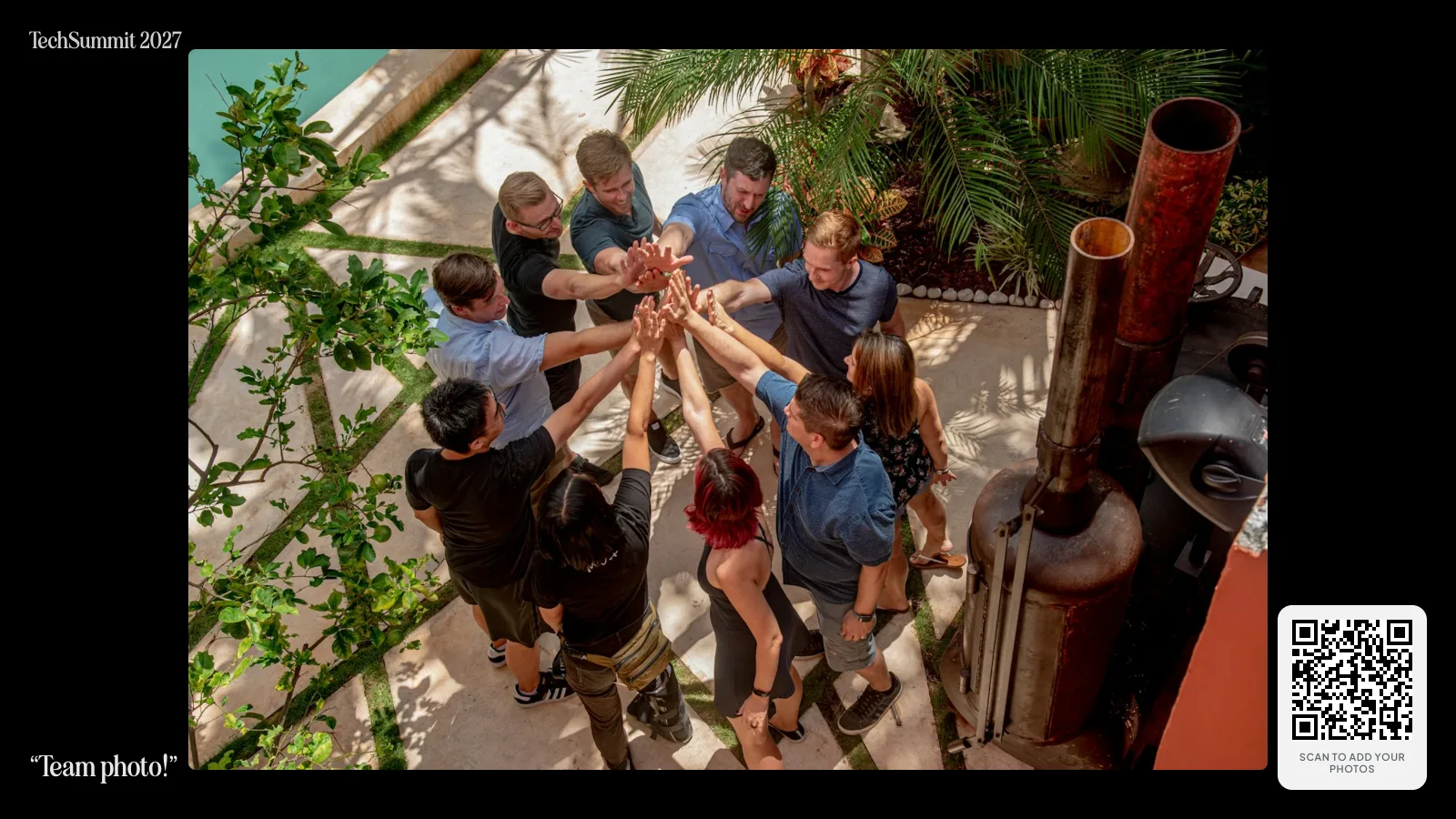
The live wall is what turns photo sharing from a chore into part of the party. New uploads appear on the screen within seconds, and people who see their own photo come up immediately go and take more. The screenshot above is our demo company event: one photo at a time, full screen, with the QR code in the corner so anyone who walks past can join in.
Two settings worth knowing, both under Manage Features, then Live Photo Wall: the slide speed, and whether the QR code shows on the wall. If the screen is in a lobby where people outside the party walk past, hide the QR code there. Details in change the wall speed and hide the QR code. The wall works on every plan, including Free.
How to get people to actually upload
The QR code on the table gets you some photos. What gets you most of them is telling people, more than once:
- At arrival: whoever greets people points at the sign.
- Before dinner or speeches: one sentence from the microphone. "Scan the code on your table, every photo goes on the screen." That single announcement usually does more than all the signs.
- Once the wall is busy: people see it working and join in without being asked.
A short list of photo prompts on the table cards helps the people who don't know what to take. Ten that work at office parties:
- Your whole team in one shot
- The best holiday jumper in the room
- Someone from a team you never work with
- Recreate a photo from last year's party
- The longest-serving person here and the newest
- The dessert table before it's gone
- Your manager's best dance move (with permission)
- A toast, mid-clink
- The view from your table
- The last group standing at the end of the night
Privacy at a work party: settle it before the night
An office party isn't a wedding. People are photographed with colleagues and managers, often after a few drinks, and the photos sit somewhere the whole company can see them. Four things to decide in advance:
- Who can see the gallery. A password keeps it inside the company. EventPixel checks it on our server, and it covers the gallery, the upload page and the live wall.
- Who can keep copies. Downloads on with a sign-in is the usual middle ground. Turn downloads off if photos should stay in the gallery.
- What happens to an unwanted photo. There's no approval queue on EventPixel; photos go live as they're uploaded. The host and co-organisers can delete any photo from any phone, and it leaves the gallery, the wall and face search at once. Tell people at the start: "If you want a photo taken down, tell Priya and it's gone." Then make sure it is. See how to delete a guest's photo.
- Where photos can be posted. If marketing wants to use party photos on social media or the careers page, say so in the invite, and ask the people in the photo first. The gallery being shared internally isn't consent to post publicly.
Teams in more than one office
The same link works anywhere, so one event can collect photos from several parties at once. The London office and the Bangalore office scan the same QR code, both walls show both parties, and people working from home can add photos from their own celebrations. It's one of the few times a distributed team sees itself in one place. Set the event date to the main party, and leave uploads open for the week if the parties are on different days.
After the party
- Send the link in the recap email. One link to the whole gallery, the morning after, while people still care.
- Let people find themselves. On Premier and above, every guest can use PixelFind: one selfie, and they see every photo they're in, instead of scrolling through four hundred.
- Turn uploads off once the late photos are in, so the gallery stays as it was.
- Download your copy. Every paid plan includes the whole gallery as one original-quality ZIP; on Free you download photos one by one. See download all photos as a ZIP.
What it costs
EventPixel's Free plan holds 100 photos, with the live wall and QR code included, which can be enough for a small team's drinks. For a bigger party, plans are one-time payments per event, not subscriptions: Classic is $19 for unlimited uploads and the ZIP download, Premier is $39 and adds face search for every guest, and Grand is $69 and removes EventPixel branding from the event. Prices in other currencies are on the pricing page. Event agencies and venues running many parties a season can use the annual professional plans instead.
When EventPixel isn't the right tool
- You want video. EventPixel collects photos only.
- You want the photos hidden until the next day. Disposable-camera apps like POV hold photos back until a reveal time; ours show up live. See EventPixel vs POV.
- You only need to deliver a hired photographer's pictures. A photographer's own proofing gallery does that better; EventPixel is built for collecting everyone's photos.
FAQ
How do I collect photos from everyone at an office party?
Create one shared event with a QR code, print the code on the tables and put it on the screen, and announce it once from the microphone. Guests scan it and upload from their phone's browser, with no app or account. The next morning, send everyone the gallery link so they can browse and download.
Do guests need to download an app?
No. On EventPixel, guests upload, browse the gallery and watch the live wall in their phone's browser without an app or an account. A sign-in is only needed for face search, and for downloads if the host requires it.
Can partners and plus-ones who aren't employees add photos?
Yes. Anyone who scans the QR code, or knows the password if you set one, can upload. That's the main advantage over a Slack or Teams channel, where only people in the workspace can post.
How do I show party photos on a TV during the event?
Open the event's live photo wall in the TV's browser, or cast it from a laptop or phone. New uploads appear within seconds, with the QR code in the corner so people can join in. It works over HDMI, smart TVs, Chromecast, Apple TV and Fire TV, on every plan including Free.
Can I stop embarrassing photos appearing on the screen?
EventPixel has no approval queue; photos go live as they're uploaded. Have one person watch the gallery on their phone: they can delete any photo instantly, and it disappears from the gallery, the wall and face search at once. A password keeps uploads limited to invited guests.
Is the photo gallery private?
It can be. Turn on a password and only people who know it can open the gallery, the upload page or the live wall; it's checked on the server, not just shown as a screen. Event pages are also kept out of Google and Bing.
Is there a free option for a holiday party?
Yes. EventPixel's Free plan holds 100 photos and includes the QR code and the live photo wall. Paid plans are one-time payments per event, from $19 for unlimited uploads.
How do I get all the photos afterwards?
On any paid plan, request the whole gallery as one ZIP of original-quality files from the event dashboard. On Free, photos download one at a time. Guests can download their own favourites from the gallery unless you turn downloads off.
The short version
One QR code on every table and on the screen. One announcement from the microphone. A live wall running all night, and one person ready to delete. The gallery link in the recap email the next morning. To try it before the party, create a free event and scan your own QR code. For bigger company events, the corporate event photo sharing page covers branding and conferences, and party photo sharing covers the rest.
Related reads: